Icon of two documents crossed out with a red prohibition symbol, set against a red abstract background, indicating prevention or restriction of duplicate files.

How to Prevent Duplicate Entries in AppSheet

In this video, I walk through a quick tip for avoiding duplicate records in your AppSheet app. If you’ve ever had users (or yourself) accidentally enter the same information more than once, you know how frustrating it can be to clean up. Thankfully, AppSheet makes it pretty easy to prevent duplicates. In the video, I […]


Continue Reading
Filed Under: How To, Tips
Background is dark purple with lighter purple and blue lines representing waveforms. In the foreground is the AppSheet logo.

Exploring AppSheet’s New AI Text Categorization

In this video, I explore a new AI feature in Google AppSheet that lets you automatically categorize text entries within your app. This builds on a previous video covering the new AI features, like extracting text from images, but the focus here is on understanding the content of user-submitted text and assigning it to predefined […]

Continue Reading
Filed Under: Features, How To, Learning
The AppSheet logo above and Zapier logo below, with a curvy arrow connecting the two.

How to Connect Google AppSheet to Zapier Without Code

In this video, I show how to connect Google AppSheet to Zapier, making it easy to automate workflows between AppSheet and thousands of other apps using no-code tools. Zapier acts as a bridge that listens for events from AppSheet and then triggers actions in other tools such as Slack, Gmail, or Google Sheets. The example […]

Continue Reading
Filed Under: How To, Learning
Icon of a calendar with a reminder bell in front of it. Behind the icon is a blue star field.

Build Your Own Appointment Reminder App with Google AppSheet

In this three-part video series, I show how you can build a fully functional, customizable appointment reminder and confirmation app using Google AppSheet. If you’ve ever received helpful reminders from your doctor or hairdresser, this app lets you create that kind of system for your own business. And you can build and host it at […]

Continue Reading
Filed Under: How To, Learning
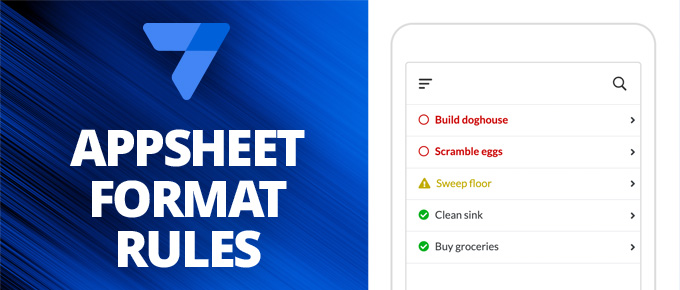
On the left is has the AppSheet logo and the words "AppSheet Format Rules" on a medium blue background. On the right it should an image of phone showing a table with the rows "Build doghouse", "Scramble eggs", "Sweep floor", "Clean sink", "Buy groceries". The first two rows are red with a circle icon to the left. The third row is yellow with a caution icon to the left. The bottom two rows are green with a checkmark icon to the left.

Conditional Formatting in Google AppShet with Format Rules

If you’re familiar with conditional formatting in Google Sheets, you already have an idea of how format rules work in Google AppSheet. Format rules let you change the style of different elements in your app based on specific conditions, making it easier to highlight important information and improve usability. In this video, I walk through […]

Continue Reading
Filed Under: Tips