
The 21-minute version
This is a compilation of my email sequence that walks you through the tools you can use to build custom business apps with Google Workspace. It’s 7 emails total, and they’re intended to take 3 minutes each.
If you don’t have 21 minutes right now, you can sign up to get the emails instead. That way you can be sure to see them all without having to remember to come back here.

1,200 wasted moments every day
First let’s talk about the problem. It’s that the average worker switches between apps and tabs about 1,200 times a day. That’s just under four hours a week, or about five weeks a year. Bloomberg called it the “toggling tax.” And it’s exactly the kind of hidden cost that’s easy to miss until you take a closer look.
Every one of those switches is a moment when you or your team aren’t doing real work. It’s wasted time. Like copying from one tool to paste into another. Or checking a spreadsheet against an email just to see where things stand. It’s not the real work. It’s the stuff around it.
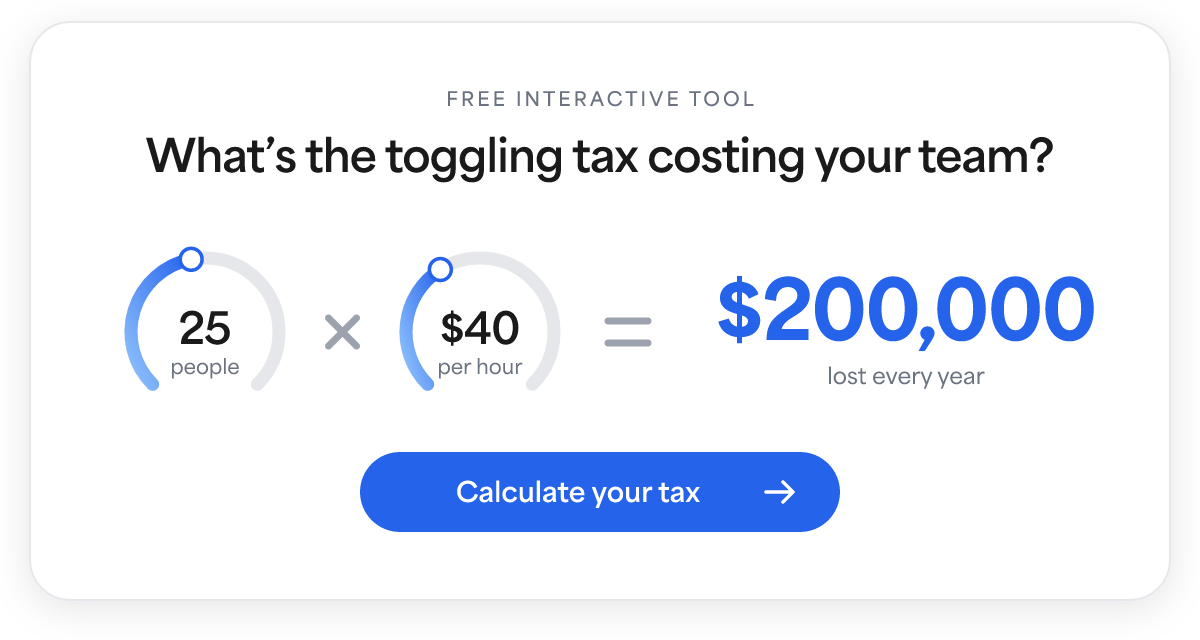
And there’s a big reason it happens. The tools you’re using were built for some general purpose, not for exactly what you’re trying to do. So you spend all these little moments filling that gap. And the cost is time.
So that’s the opportunity. If, instead of all these “one size fits all” tools, you create something that actually works the way you do, the switching becomes unnecessary. And the time you’ve been spending as “the glue,” you get back.
Tomorrow we’re going to take a look at the Google tools that make this possible, and even easy.
See you then,
Google tools for creating your own tools
Yesterday I hinted that Google Workspace lets you build tools that work the way you do. A picture is worth 1,000 words (and a video is worth 10,000) so I created this video to show the tools rather than trying to describe them.
I know that was a lot in a short time, but hopefully it gave you the idea. We’ll go a little more in depth on each of these tools in the next few days. Tomorrow we’ll start with AppSheet.
Talk then,
AppSheet: your Google Sheets, as an app
Your data stays in Sheets. AppSheet just gives you a better way to work with it.
Today we’re going to look at AppSheet. Here’s the simplest way to think about it: your data stays in Google Sheets, but AppSheet gives you a better way to look at it and work with it. Either on your computer or your phone.
And beyond just a nicer view, it does some things that Sheets itself isn’t particularly good at:
- Making things required so bad data doesn’t get in
- Giving you offline access from your phone, with automatic sync when you’re back online
- Providing automations to handle repetitive work
In this video I’ll give you a quick look at how creating an app with AppSheet works:
Something that a lot of people don’t realize is that AppSheet is included with most Google Workspace plans. So if you’re already using Workspace, it’s a great way to improve your spreadsheet processes without adding a new expense.
Tomorrow we’re going to look at Google Workspace Studio. It’s for creating workflow automations… kind of like Zapier.
See you then,
PS: If you have any questions you can reply to these emails. The messages go right to me, and I’ll get back to you shortly.
Workspace Studio: let automation do the work
Set it up once, and it handles the repetitive stuff for you automatically.
Today we’re looking at Workspace Studio, one of Google’s newest additions to Workspace. Here’s how it works:
- You tell it what kind of things to watch for, and what to do when those things happen.
- From then on, it handles those things automatically, without anyone having to remember to do them.
If you’re familiar with Zapier, it’s kind of like that but built right into Google Workspace.
Here’s a quick look at how it works:
Tomorrow we’re going to look at AI Studio. It’s an exciting one. Kind of like magic.
See you then,
AI Studio: build apps by describing them
Vibe coding meets Google Workspace. Endless freedom to build what you imagine.
Today we’re looking at AI Studio. It’s a “vibe coding” tool where you describe the app you want, and AI builds the app for you. That simple. Here it is in action:
So you may be saying to yourself “Wow, AI Studio looks amazing! Why not just use it for everything?”
Well the answer is because with the magic comes a few tradeoffs. And you just need to be aware of them. I’ll explain…
When you use a “no-code” tool like AppSheet or Workspace Studio to build your app, it has built-in guardrails that control what you can do, which naturally prevents you from doing things that break the app. The downside is that those guardrails can start to feel a little rigid when you really want to push the bounds of your app.
A “vibe coding” tool like AI Studio is the exact opposite. It gives you complete flexibility, but you don’t have those types of built-in safety nets. And without those guardrails, it just means you need to be more careful about what you’re doing. Especially if the app is something your business depends on.
Don’t let that deter you, though. It’s mainly about picking the right tool (or combination of tools) for the job, understanding the basics of security, and knowing what to do if something unexpected happens. All things that can be easily learned.
Tomorrow we’re going to look at Google Cloud. It’s how you, your team, your customers, or anyone else you choose can actually access the tools you’ve built with AI Studio. It’s also where you’ll find more advanced capabilities, like storing your app data in a true database when it becomes too big for a spreadsheet.
Talk then,
Google Cloud: take your custom apps live
Yesterday we looked at building custom tools with AI Studio. But an app like that isn’t of much value until people can use it.
That’s where Google Cloud comes in. It takes the custom tools you build and runs them online so everyone you want to have access can use them.
This video shows what Google Cloud is and how easy it is to deploy your AI Studio apps:
Beyond just hosting your custom apps, Google Cloud acts as a long-term foundation for a growing business. As your needs expand, it gives you access to advanced services that are there for you whenever you’re ready for them.
For example, if you eventually outgrow basic spreadsheets, you can move your data to full databases on the exact same platform. And if you ever want to build more specialized AI workflows, it has tools like Vertex AI that are made for just that. The great thing about Google Cloud is that no matter how big your vision gets, your business will never outgrow your technology stack.
Tomorrow we’re going to look at how you and your team can get started with everything we’ve talked about this week.
See you then,
How to get started
Hopefully this week has given you a good sense of what’s possible, and maybe even sparked ideas for things you could build in your own business.
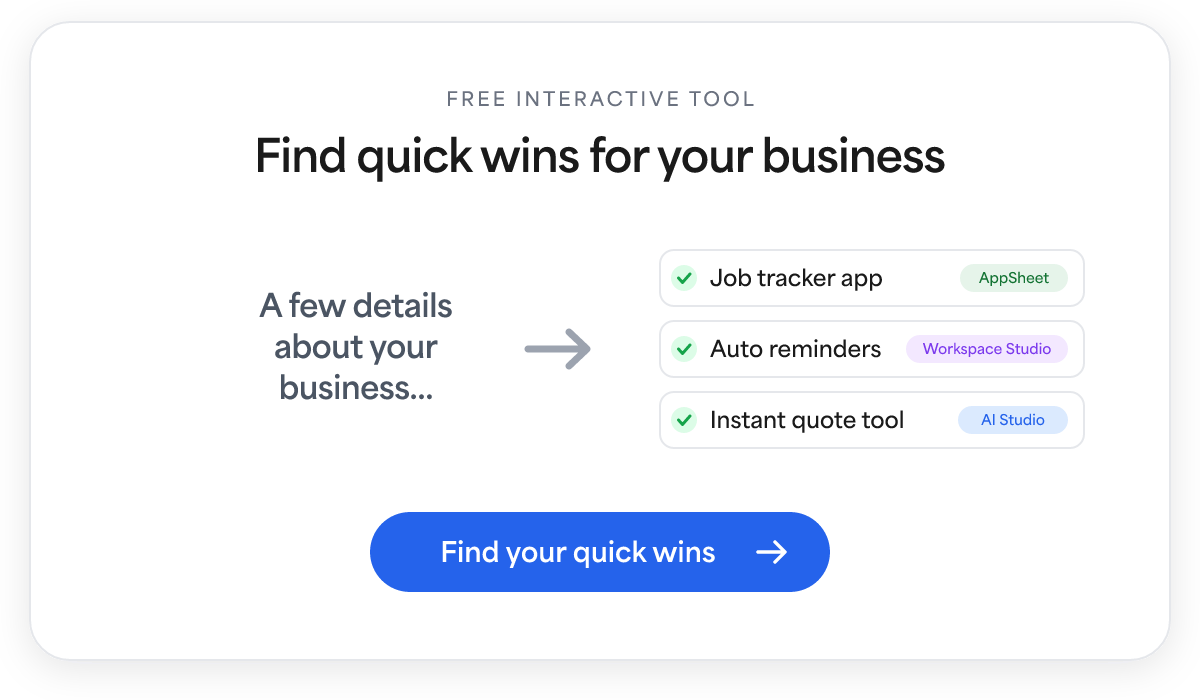
If the ideas aren’t flowing yet, I built a tool to help with that. It asks a few questions about your business and then suggests some quick wins you could build on Google Workspace. It’s fast, it’s free, and there’s no email required.
If you haven’t already tried any of the tools we’ve covered, here are the links:
Google provides excellent documentation for each one to help you get started, and if you’re looking for more I also have a YouTube channel, “The Workspace Way,” where I share new tips, demos, and tutorials on building with Google Workspace.
I really hope this little series was helpful. I’m always looking for ways to improve it, so if you have any ideas please let me know (you can just reply).
Thanks for following along, and happy building!
PS: If you’d like a partner for your first project, that’s something I do. With an Alliance Project, I work alongside you and your team to plan, prototype, and build your first app, so you get going faster without having to learn everything from scratch.
7 days. 3 minutes each.
At the end, you’ll know if building on Workspace is right for you.