
Conditional Formatting in Google AppShet with Format Rules
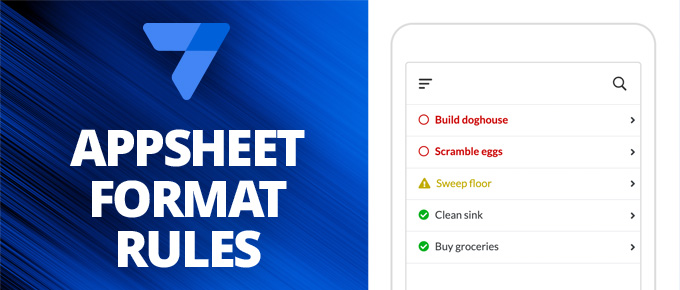
If you’re familiar with conditional formatting in Google Sheets, you already have an idea of how format rules work in Google AppSheet. Format rules let you change the style of different elements in your app based on specific conditions, making it easier to highlight important information and improve usability.
In this video, I walk through how format rules work using a sample app provided by Google. The app contains a list of tasks, each of which has a different color and icon applied depending on its status. These visual cues make it easy to see which tasks are complete, incomplete, or have issues at a glance.
To set up format rules, you can find them under the “Views” section in AppSheet, where there is a submenu specifically for “Format Rules.” Each rule is based on a condition, such as the status of a task, and applies a unique formatting style when that condition is met. You can customize:
- Icons: Choose an icon to represent each condition.
- Colors: Adjust the text and highlight colors.
- Text Format: Change the font size, underline text, or make it uppercase.
These format rules allow you to apply styling dynamically across your entire app, giving it a more polished and user-friendly look. You can create as many format rules as needed to customize the app’s appearance based on your data.
If you found this video helpful, be sure to subscribe to our YouTube channel for more AppSheet tips! Subscribe here.