
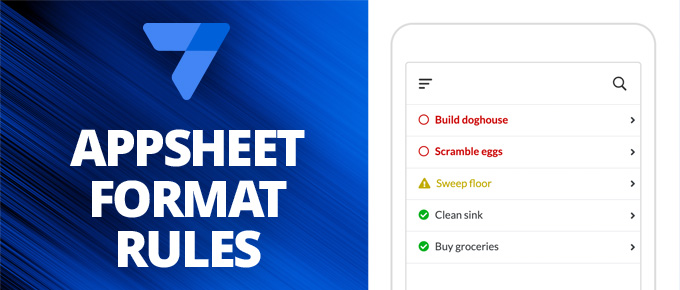
On the left is has the AppSheet logo and the words "AppSheet Format Rules" on a medium blue background. On the right it should an image of phone showing a table with the rows "Build doghouse", "Scramble eggs", "Sweep floor", "Clean sink", "Buy groceries". The first two rows are red with a circle icon to the left. The third row is yellow with a caution icon to the left. The bottom two rows are green with a checkmark icon to the left.

Conditional Formatting in Google AppShet with Format Rules

If you’re familiar with conditional formatting in Google Sheets, you already have an idea of how format rules work in Google AppSheet. Format rules let you change the style of different elements in your app based on specific conditions, making it easier to highlight important information and improve usability. In this video, I walk through […]

Continue Reading
Filed Under: Tips
Outlines of purple email envelope icons in the foreground a blue streaks in the background that make it look like they are moving through the internet.

Send Better Google Forms Email Notifications (and more) With AppSheet

Google Forms makes it easy to collect information, but its built-in email notifications are pretty basic. They don’t include the full content of form submissions, and searching through responses can be limited. That’s where Google AppSheet can help. In this video, I show how to combine Google Forms and AppSheet to create more powerful notifications. […]

Continue Reading
Filed Under: Features, How To, Learning, Tips